Compare prices across stores
On this page
This guide takes you from a product name to the store where you buy it. You search Shopping once, read the offers, compare one product across every store that sells it, check how fresh each price is, and go to the store you choose.
#Search the stores
-
Select the Shopping tab and type what you want: a model (
sony wh-1000xm6), a kind of thing (wireless headphones) or either with a limit (wireless headphones under $50). -
Press Enter. Store prices says "Checking stores…" while the stores answer, usually within a few seconds.
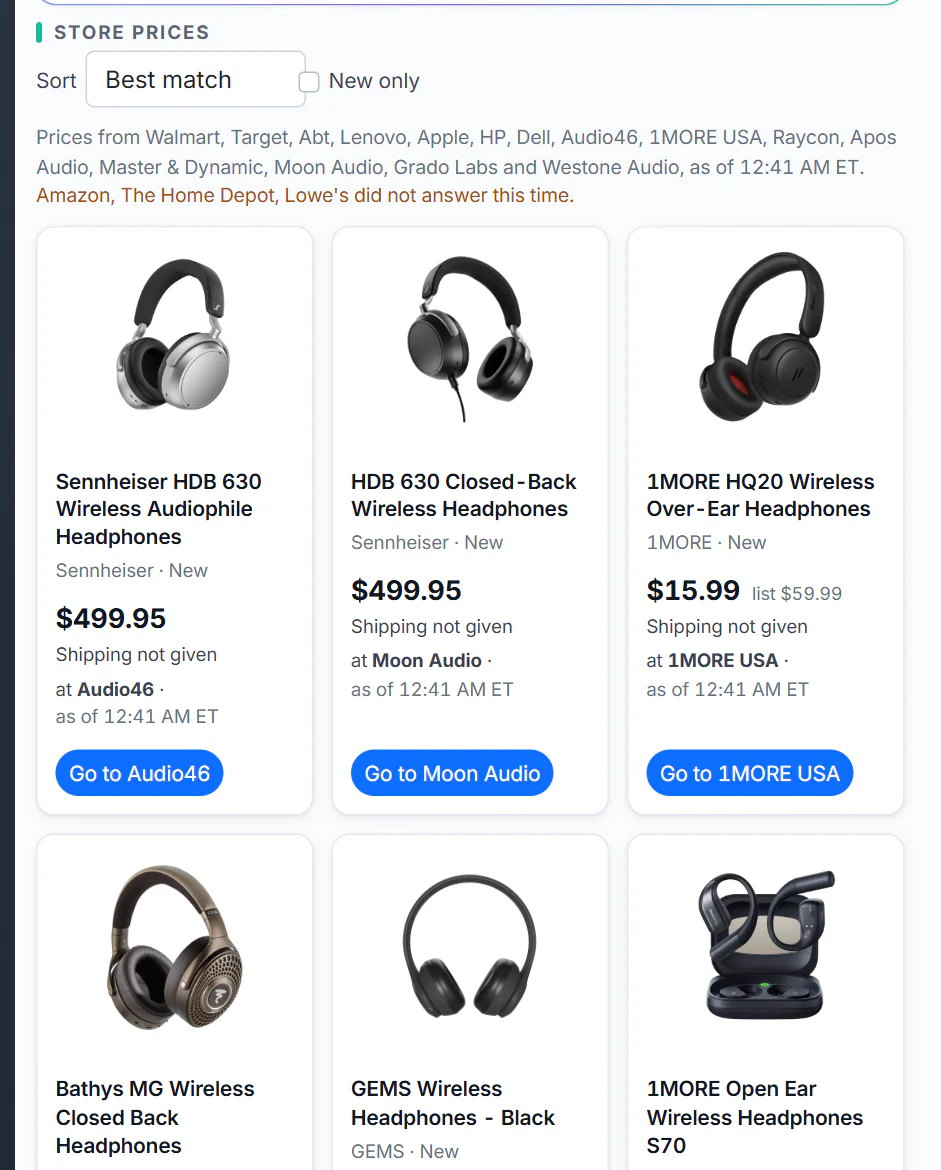
The line above the cards names the stores that answered and when their prices were checked.
- 1Sort: Best match, Lowest price or Most stores
- 2New only hides used and refurbished offers
- 3The stores the prices come from, and when they were checked
- 4One product, with its best offer
-
Read the line above the cards: the stores whose prices you see, and any that did not answer this time.
Shopping asks the big general stores plus the specialists that sell what you named, so precise words reach more specialists. A condition such as refurbished or used in your words is understood too. See Search Shopping and read the results and Which stores Shopping checks.
#Read a card
Each card is one product with its best offer: the cheapest new one when there is one.
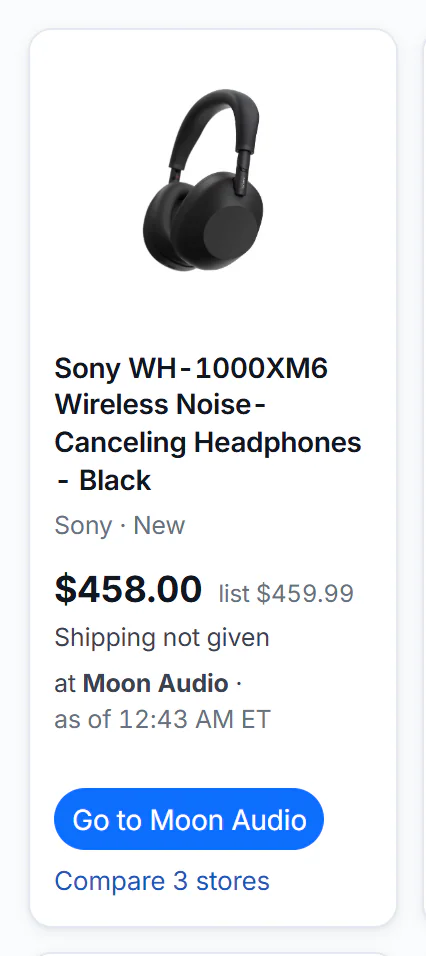
One product card. This one is sold by three stores, so it offers Compare 3 stores.
- 1The product: select to compare stores
- 2Price, the store's list price, and the shipping line
- 3Which store, and when the price was checked
- 4Go to the store: you buy there, not on 4Search
- 5Compare the same product across stores
- The price, with the store's own list price beside it when it gives one.
- The shipping line: Free shipping, the shipping price, or Shipping not given when the store does not say. Shopping never assumes free shipping.
- at the store · as of a time: who sells it and when the price was checked, in Eastern Time.
- Go to opens the offer on the store's site in a new tab.
#Compare one product store by store
Select Compare on a card, or the card's title. The product's page lists every store's offer in a table with Price, Shipping, Total, Condition and Checked.
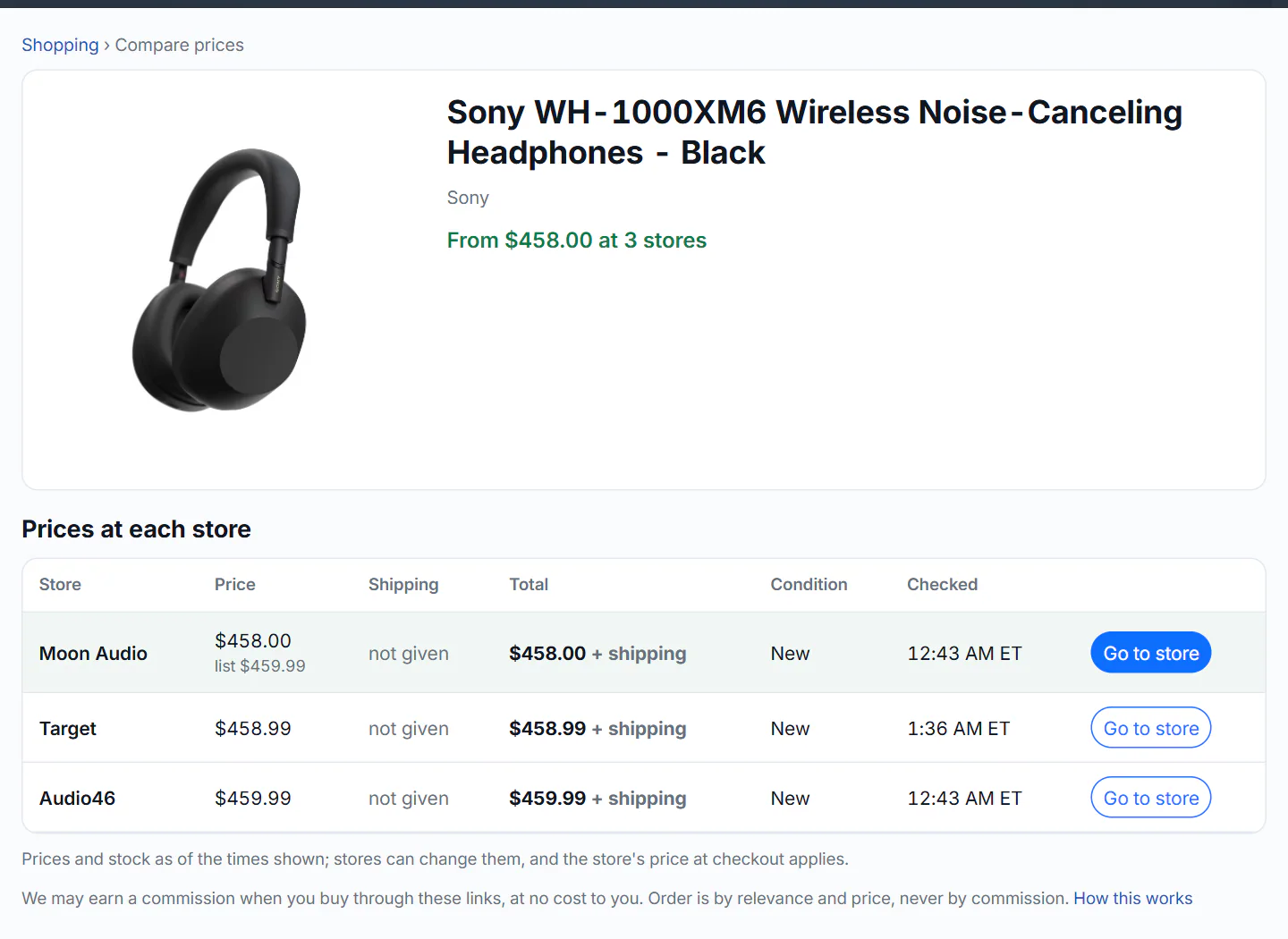
One product at three stores. The cheapest row is highlighted.
- 1The product, as the stores name it
- 2The lowest price and how many stores sell it
- 3What each column means
- 4The cheapest row is highlighted
- 5Go to store opens the seller's own page
- 6The reminder that 4Search may earn a commission
New offers come first, cheapest total first, then used and refurbished ones. The page checks the stores again each time it opens, so a link you share shows the person current prices. See A product's prices at each store.
#Sort and narrow
Above the cards, open Sort and choose Lowest price (shipping counted when the store gives it) or Most stores, and tick New only to hide used and refurbished offers. A budget goes in the words: tv $300 to $600. See Sort and narrow the results.
#Check the price before you buy
- Look at the as of time on the offer. If it is not recent, search again or reload the product's page.
- On the store's page, check the price for the option you want, the shipping to your address and the condition.
- Buy only when the store's own checkout shows a price you accept.
The store's checkout price is the one that applies, before tax. Shopping does not sell anything, and it keeps no price history and sends no price alerts. See How fresh the prices are.
#Know how the links work
Some Go to links are affiliate links: if you buy, the store may pay 4Search a small commission, at no extra cost to you. A note under the results and under each product's table says so and links to How this works.
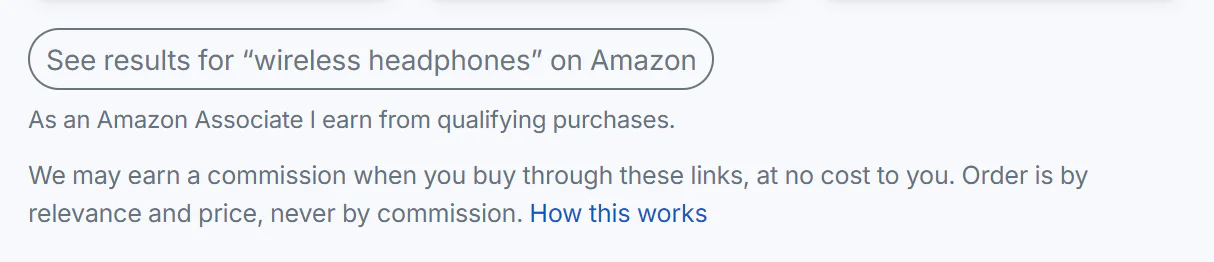
The notes under the store prices: the Amazon link and the commission line.
- 1A link to Amazon's own search page
- 2Disclosure: commission, ordering, and a link to how it works
Under the results, See results for "…" on Amazon opens Amazon's own search for your words. See Store links and commissions.
#Common questions
Can I buy something on 4Search?
No. There is no cart and no checkout. Go to opens the store's own page, and you buy there under the store's terms.
Why does my site's Shopping tab show articles instead of prices?
Store price comparison is on 4Search's Shopping tab. Other sites of the 4 Network show shopping news and a link to search Amazon.
Who do I contact about an order?
The store you bought from. 4Search is not part of the sale.