Save places and keep your own lists
On this page
Select Save on any place and Maps keeps it in Your places, a list kept in your own browser. Sort your places into lists, open them from directions, show them all on the map at once, or download them.
#Save a place
- Open a place: a city, a business, a landmark or a dropped pin.
- Select Save. The button changes to Saved, and the count beside Saved in the ribbon goes up.
-
The first time, Maps asks your permission, because your places are kept in this browser.
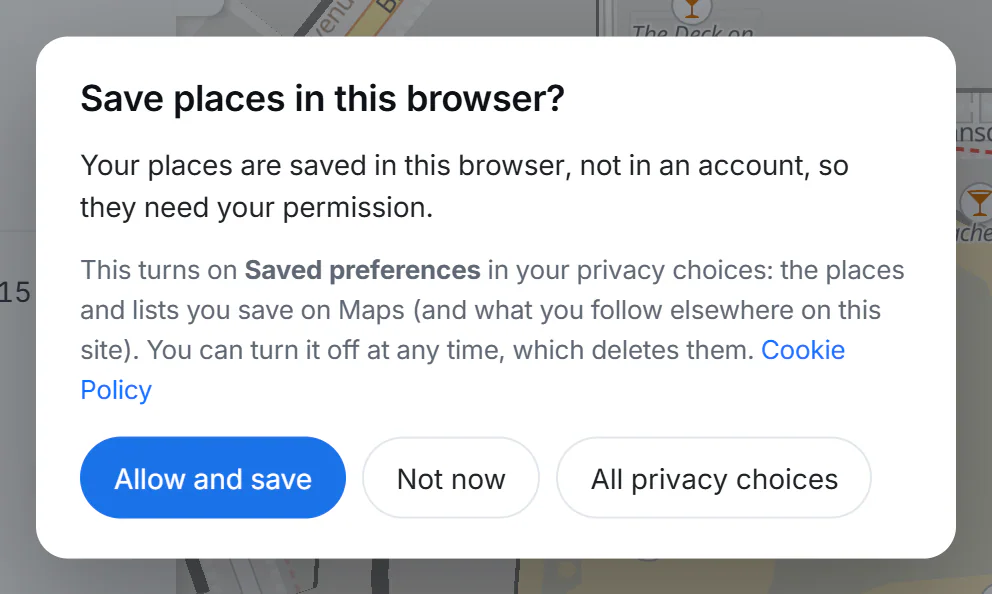
The first time you save, Maps asks to turn on Saved preferences.
- 1Allow and save turns on Saved preferences
- 2Not now: nothing is saved
- 3Open all your privacy choices
Select Allow and save to turn on Saved preferences and save the place. Not now saves nothing; All privacy choices opens the full list of your choices.
To remove a place, select Saved on its page again.
#Your places
Select Saved in the ribbon to see them all. The Maps home also shows your five most recent places under Your places.
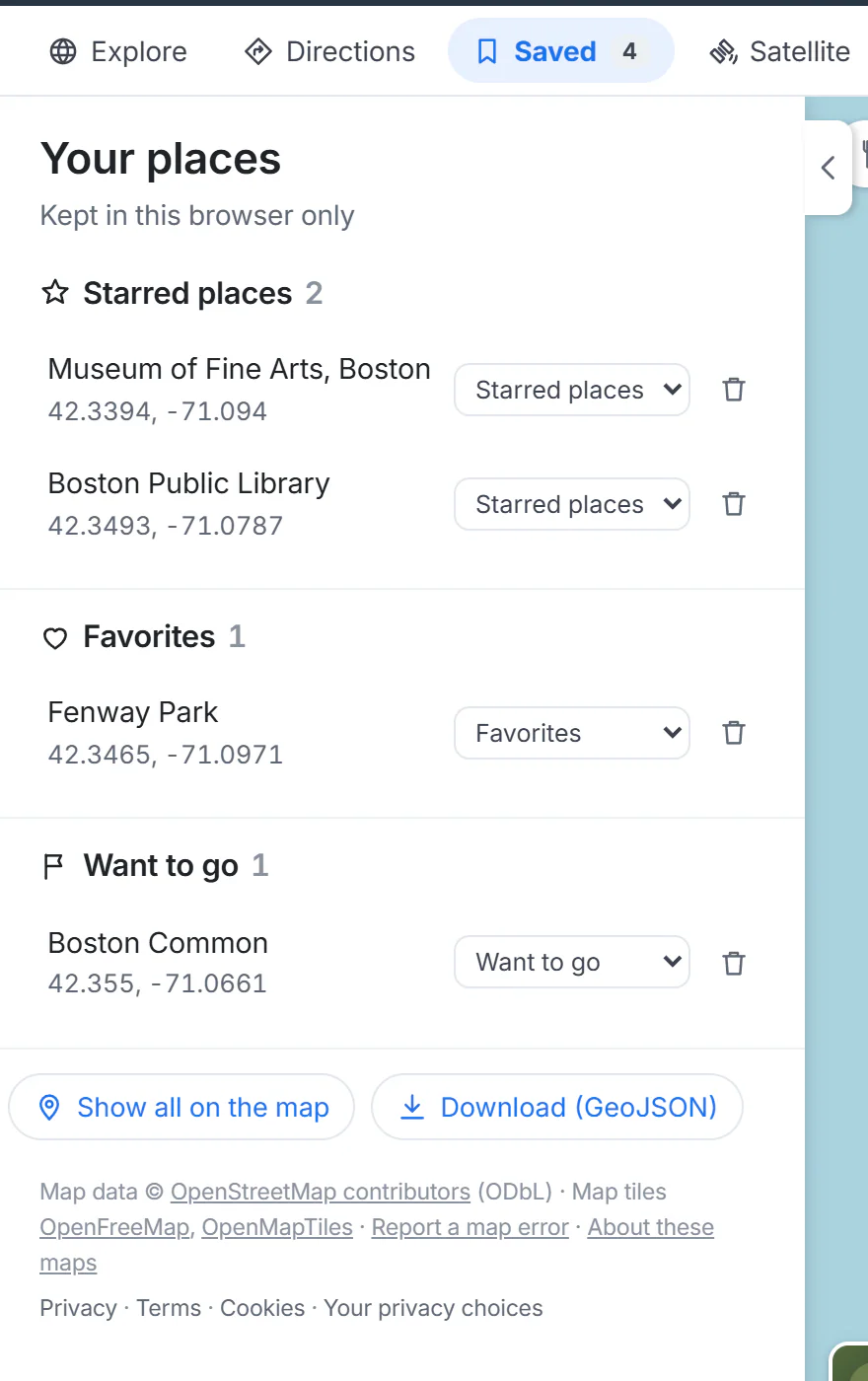
Your places, grouped in lists. The menu beside each place moves it to another list.
- 1How many places you have saved
- 2Your places, grouped in lists
- 3Move a place to another list
- 4Remove a place
- 5Show all on the map, or download them
- New places go into Starred places. Use the menu beside a place to move it to Favorites, Want to go, Home or Work.
- The trash button removes a place.
- Show all on the map puts every saved place on the map at once, so you can see how they spread out.
- Download (GeoJSON) saves the whole list as a file named
my-places.geojson, which most mapping programs and GPS apps can open. Keep it as a backup, or open it in another mapping app.
#Use your places in directions
When you select an empty box in Directions, the suggestions list Your location and then your saved places. One tap makes a saved place the start or the destination.
#What else Maps remembers
With Saved preferences allowed, Maps also remembers, in this browser:
- Your recent searches: select the empty search box to see the last few, marked Recent search.
- Miles or kilometers: your choice in the Layers menu. Without Saved preferences, it lasts only until you close the tab.
#Common questions
Do I need an account to save places?
No. There are no accounts. Your places live in the browser where you saved them.
Will my saved places appear on my phone?
No. Each browser keeps its own list. To copy your places across, download them on one device and keep the file; Maps itself cannot import them.
How many places can I save?
Up to 500.
Why did my saved places disappear?
Either Saved preferences were turned off, which deletes them, or the browser's data for the site was cleared (private windows clear it when you close them).
Can I name a place myself?
Not at the moment. A saved place keeps the name shown on its page; a dropped pin keeps its street address.